

Locking your iPhone the right way is one of the easiest defenses you have to keep your photos, chats, and banking apps safe from anyone who picks up your device. In this revamped guide, you’ll learn exactly how to lock screen on iPhone in a few quick taps so your data stays protected all day long.
When your iPhone lock screen is configured properly, it does more than just look nice. It controls:
- Who can read your notifications
- How quickly the display turns off
- How safely your information sits behind Face ID, Touch ID, or your passcode
- Why Your iPhone Lock Screen Is So Important
- How to Instantly Lock Your iPhone Screen with a Button
- Use Auto-Lock So Your iPhone Locks Itself
- Strengthen Your Lock Screen with Passcode, Face ID, or Touch ID
- How to Lock Screen on iPhone 13, 14, and 15
- Special Cases: Kids, YouTube, and a Broken Power Button
- How to Change and Personalize Your Lock Screen
- Bringing It All Together
- Conclusion
- FAQs
Why Your iPhone Lock Screen Is So Important
Think of the lock screen iPhone as the main entrance to your digital world. A properly secured lock screen helps you:
- Block strangers from opening apps or scanning notifications
- Prevent accidental taps when your phone is in a pocket or bag
- Cut down on battery usage by turning off the display quickly
Spend a couple of minutes setting things up once, and your iPhone will quietly protect you in the background every single day.
How to Instantly Lock Your iPhone Screen with a Button
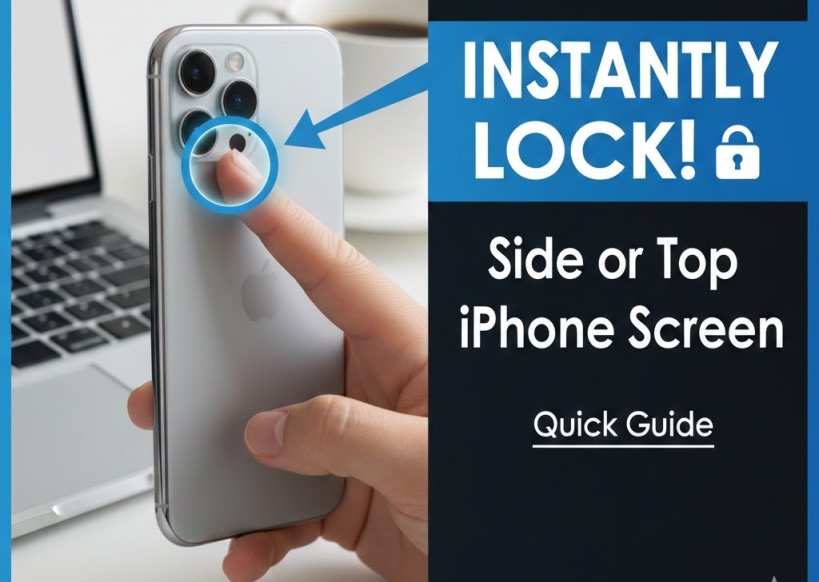
In real life, most people just want to know how to lock iPhone screen as quickly as possible—when you’ve finished paying at a store, passed your phone to someone, or are about to put it away.
On most recent iPhones (with or without a Home button):
- Press the Side button once (or the Top button on some older models).
- The display turns off immediately.
- Your iPhone is now locked and will require Face ID, Touch ID, or your passcode to open again.
Make pressing that button a habit. If you lock the phone the moment you’re done using it, it’s rarely left unlocked on a table or in your hand.
Use Auto-Lock So Your iPhone Locks Itself
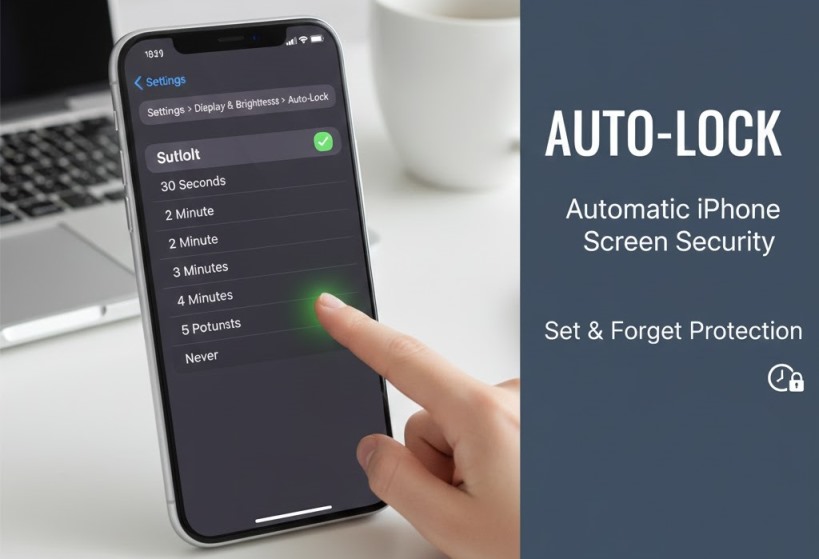
You shouldn’t rely only on manual locking. This is where iPhone auto lock settings become essential.
Go to:
Settings > Display & Brightness > Auto-Lock
Here, choose how long the screen can stay on before the phone locks automatically.
Shorter timings like 30 seconds or 1 minute are ideal when you care about:
- Privacy in public places
- Protecting sensitive notifications from prying eyes
- Saving battery life by turning the screen off sooner
Once Auto-Lock is configured, you get a powerful combination: even if you forget to press the button, your iPhone handles the lock for you.
Strengthen Your Lock Screen with Passcode, Face ID, or Touch ID
Turning the screen off is only half the story. You also need solid security behind it. Inside your iPhone lock screen settings, you choose how the phone unlocks and what can be seen while it’s locked.
To tighten your security:
- Open Settings.
- Tap Face ID & Passcode (or Touch ID & Passcode on models with a Home button).
- Set a strong passcode (avoid simple codes like 1234 or 0000).
- Enable Face ID or Touch ID for unlocking, Apple Pay, and compatible apps.
These controls essentially act as your lock screen settings iPhone, letting you decide:
- Whether notification previews appear on the locked screen
- If Control Center can be accessed while locked
- Which features (like Wallet or Home controls) are available without a full unlock
How to Lock Screen on iPhone 13, 14, and 15
If you own a newer device, the good news is that how to lock screen on iPhone 13, how to lock screen on iPhone 14, and how to lock screen on iPhone 15 all work the same way:
- Press the Side button once to lock the display.
- Let your chosen Auto-Lock time handle the rest if you forget.
While iOS updates may add extra options in the Auto-Lock, Face ID, or passcode menus, the basic process for locking and unlocking remains consistent across recent models.
Also Read: How to Extract Audio from a Video Clip on iPhone for Free
Special Cases: Kids, YouTube, and a Broken Power Button
1. How to Lock iPhone Screen for Kids
Parents often search how to lock iPhone screen for kids so that little fingers can’t exit a cartoon, open your messages, or start rearranging apps. The best built-in solution is Guided Access.
To set it up:
- Go to Settings > Accessibility > Guided Access and turn it on.
- Set a Guided Access passcode.
- Open the app you want your child to use (like a kids’ video or game).
- Triple-click the Side or Home button to start Guided Access and lock the device to that app.
Now your child can tap around inside that one app, but they won’t be able to leave it or open anything else without your passcode (or Face ID / Touch ID if you allow it).
2. How to Lock iPhone Screen While Watching YouTube
A very common question is how to lock iPhone screen while watching YouTube so kids don’t accidentally pause the video or switch apps.
You can use the same Guided Access trick:
- Start playing the YouTube video (in the YouTube app or a browser).
- Triple-click the Side/Home button to enable Guided Access.
- Optionally disable touch or limit certain areas of the screen in the Guided Access options.
With this enabled, your iPhone stays on the YouTube video while blocking most other actions and exits.
3. How to Lock iPhone Screen Without Power Button
If your hardware button is damaged, how to lock iPhone screen without power button becomes a software workaround.
Use AssistiveTouch:
- Go to Settings > Accessibility > Touch > AssistiveTouch and switch it on.
- A floating on-screen button appears.
- Tap it, then choose Device and look for the Lock Screen option (you can also customize the menus to make this even quicker).
This virtual button lets you lock your iPhone without relying on the physical Side or Top button.
How to Change and Personalize Your Lock Screen
Security should always come first, but a clear and attractive Lock Screen is also important. Many users like to explore how to change lock screen on iPhone to tweak wallpapers, widgets, and text styles.
On newer iOS versions:
- Wake your iPhone so the Lock Screen is visible.
- Press and hold on the Lock Screen until the Customize option appears.
- Swipe to switch between different Lock Screens or tap Customize to adjust:
- Wallpaper
- Widgets (like weather, calendar, fitness)
- Clock font and color
Once you’re happy with the layout, you can even link it to a Focus mode—for example:
- A work layout with calendar and reminders
- A personal layout with fitness stats or family photos
This gives you a lock screen that’s not only secure but also tailored to each part of your day.
Bringing It All Together
Maximizing your iPhone lock screen security comes down to a few simple habits:
- Use the Side or Top button each time you finish using your phone.
- Configure Auto-Lock and privacy options in Settings.
- Turn on Face ID, Touch ID, and a strong passcode for protection.
- Rely on Guided Access or parental controls when kids or guests use your device.
Once these are in place, how to lock and unlock iPhone screen becomes second nature: press the button to secure it, then use your face, fingerprint, or passcode to jump back in when you’re ready.
On your own website, you can turn phrases like lock screen settings iPhone into internal anchor text pointing to more detailed pages—like guides on privacy, parental controls, or specific iOS features. This not only helps users dig deeper but can also support stronger topical authority for SEO.
Conclusion
Locking your iPhone isn’t just about turning the display off—it’s about deciding who gets even a glimpse of your personal life at a glance.
With Auto-Lock, biometrics, Guided Access, and accessibility tools in place, you can move through your day knowing:
- Your data is shielded when you’re not looking at the screen
- Your battery isn’t drained by an always-on display
- Your device stays secure even when someone else is holding it
Set everything up once using this guide, and you’ll rarely have to think about screen security again. Your phone will behave exactly how a secure device should: fast and convenient for you, and completely locked down for everyone else.
FAQs
1. Can I lock my iPhone screen using Siri?
Yes. On supported iOS versions, just say “Hey Siri, lock my iPhone” and the screen will turn off and lock.
2. Does locking the screen save battery?
Yes. Locking the display quickly and using a short Auto-Lock time reduces screen-on time, which helps extend battery life.
3. Can my Apple Watch unlock my iPhone?
Yes. If you enable it in Face ID & Passcode, an unlocked Apple Watch on your wrist can unlock your iPhone when it’s close by.
4. Does Guided Access work without Face ID or Touch ID?
Yes. Guided Access can rely only on a passcode; Face ID or Touch ID are optional shortcuts to end the session.
5. Do I need to change lock screen settings after every iOS update?
Usually no. Your settings carry over, but after major updates it’s wise to quickly review iPhone lock screen settings for new privacy or Lock Screen options.
