

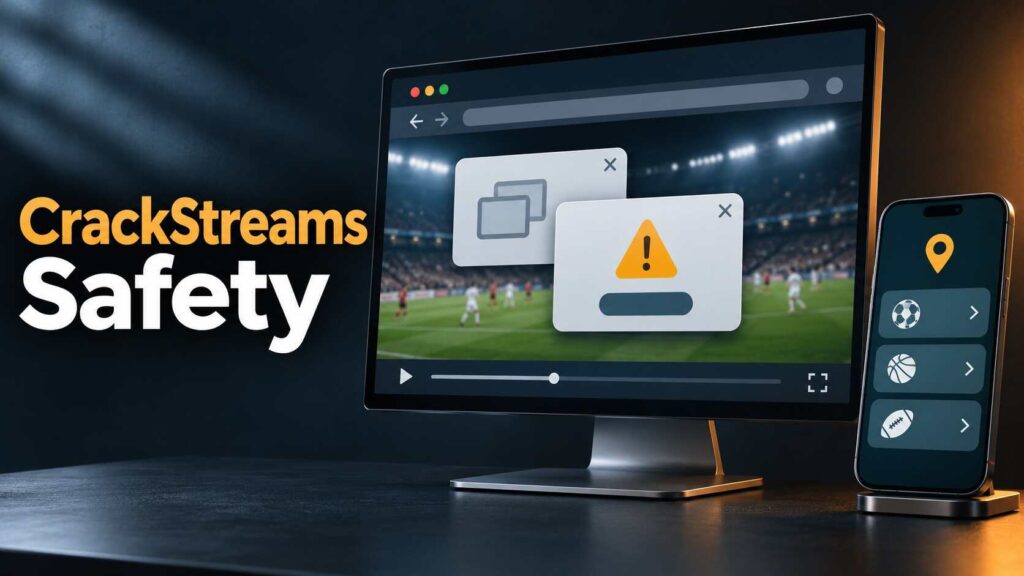
CrackStreams safety cannot be established from a working player or recognizable branding. Before trusting a sports-streaming page, consider who operates it, what it asks you to install, and whether the event has an authorized broadcaster in your country.
If pop-ups appeared after a visit, start by identifying what you allowed or installed. Unwanted notifications need a different response from an exposed password. Here is how to assess the situation without relying on another unverified streaming address. For a more detailed assessment, this CrackStreams safety guide covers browser risks, account protection, and licensed viewing options.
What the CrackStreams Name Tells You
CrackStreams has been associated with unofficial sports-streaming websites. In December 2024, the Alliance for Creativity and Entertainment announced action against a network that included a CrackStreams-branded domain. The coalition said the operators agreed to transfer 138 domains.
That documented history does not identify every current operator using the name. It also does not prove that every similarly branded page contains malware. Claims about a specific website need evidence tied to that address and date.
Separate Connection Security From Streaming Rights
An encrypted connection protects data while it travels between a browser and website. It does not establish that the destination deserves your trust. Chrome’s security team explicitly cautions against treating its connection indicator as a trustworthiness signal.
Broadcast permission is another question. A VPN, antivirus subscription, or ad blocker cannot grant distribution rights or certify a streaming provider. Check the event organizer’s official broadcaster information rather than assuming that an accessible stream is authorized.
Pop-Ups and Other Warning Signs
These are general warning patterns, not scan results for every page carrying the CrackStreams name:
- Urgent infection messages: A page demands a telephone call or remote access to “repair” your device. Microsoft identifies fake website error messages as a common technical-support scam.
- Unexpected installations: A supposed player update, extension, or download appears necessary to continue. Google advises getting software updates from official sources and respecting browser download warnings.
- Unfamiliar sign-in requests: A page asks for an existing email or streaming password without a clear, verified reason.
- Notification requests: Allowing browser notifications gives a site permission to send messages. Receiving them does not, by itself, establish that your device is infected.
Close suspicious pages through the browser’s controls. Do not call a number displayed in an alarming webpage warning. For background on browser content filtering, read this uBlock Origin review. Ad blocking does not verify a streaming site’s licensing or guarantee its safety.
What to Do After a Suspicious Visit
Match the response to your interaction:
| What happened | Recommended next step | Official help |
|---|---|---|
| You opened a page only | Close it; investigate continuing warnings or unexpected changes. | Microsoft scam guidance |
| You allowed notifications | Block the site’s notification permission. | Chrome notification settings |
| You installed software | Review unwanted apps/extensions and run a trusted security scan. | Google cleanup guidance |
| You entered a password | Change the exposed password through the real provider and review account activity. | Google account recovery |
For desktop Chrome, open Settings → Privacy and security → Site settings → Notifications to manage permissions. Pop-ups and redirects is a separate control; blocking one does not replace reviewing the other.
On Windows, a scan is available at Windows Security → Virus & threat protection → Quick scan. Follow the results and investigate persistent concerns. Deleting browsing history is not a substitute for checking unwanted software.
Change reused passwords too, review unfamiliar signed-in devices, and enable multifactor authentication.
Legal Alternatives: Start With the Event
Identify the exact fixture, your country, and whether you need live coverage, a replay, or highlights. Then consult official information.
| Official option | Relevant coverage and region | Payment considerations |
|---|---|---|
| ESPN | U.S. plans; Unlimited includes ESPN networks, while Select provides ESPN+ content. | Paid subscription; confirm the event and package. |
| Peacock | U.S. service offering selected Premier League matches. | Paid eligible plan; not every match is included. |
| UEFA broadcaster directory | Country-specific Champions League partners. | Directory is free to consult; broadcaster charges vary. |
Before subscribing, verify regional availability, blackouts, device support, and the specific event listing. Licensing is permission to distribute content, not a guarantee against every cybersecurity problem.
Conclusion
Approach CrackStreams safety through verifiable evidence and your actual browsing actions. Avoid unverified downloads, remove unwanted permissions, and use official recovery tools when necessary. For viewing, choose the authorized broadcaster for your event and region.
Frequently Asked Questions
Can Paid Sports Services Still Show Advertising?
Yes. Peacock explains that live sports and certain other content retain ads even with Premium Plus. Advertising alone does not establish fraud.
Are Official Highlights a Useful Alternative?
If full live coverage is unnecessary, check official competition channels. UEFA lists highlights, interviews, and supplementary Champions League content alongside its viewing information.
