

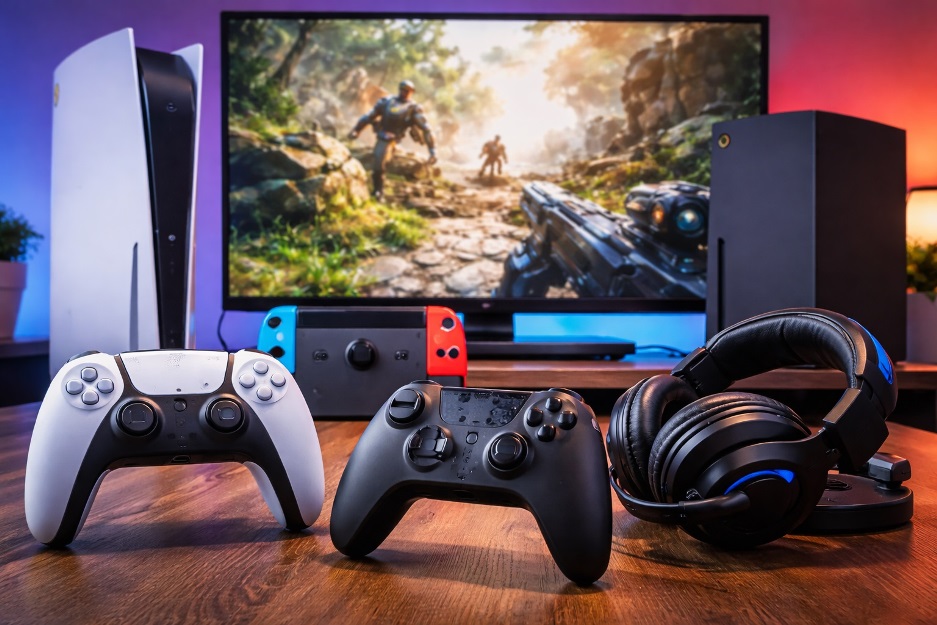
Console gaming improves fastest when you follow a repeatable loop: diagnose one issue, change one setting, and confirm the result in real play. This guide distills proven optimization methods and practical habits you can apply in minutes—using eurogamersonline.com as a reference point while keeping the focus on measurable results, not hype.
- Start With the Display Pipeline: Where Responsiveness Is Won
- Pick a Performance Target and Keep It Consistent
- Network Stability: Reduce Spikes, Not Just Speed
- Storage Strategy That Prevents Update Headaches
- Controller Setup: Precision, Comfort, and Consistency
- Audio Tuning: Competitive vs Cinematic Profiles
- System Shortcuts That Save Time Every Session
- Smart Upgrades Only: Buy to Fix a Verified Bottleneck
- Quick Troubleshooting Checklist
- Conclusion
- FAQs
Start With the Display Pipeline: Where Responsiveness Is Won
If controls feel “floaty,” fix the display chain first. TVs often add processing that looks great for movies but slows gaming.
Do these steps in order (test after each one):
- Enable Game Mode (or Low Latency mode) on your TV/monitor.
- Turn off motion smoothing (often called MotionFlow/TruMotion/Auto Motion Plus).
- Disable extra processing like noise reduction, “sharpness enhancers,” and dynamic contrast.
Advanced checks (worth 5 minutes)
- Verify output settings: match the console’s resolution and HDR settings to what your panel supports.
- If available, enable VRR (Variable Refresh Rate) to smooth frame pacing in games that fluctuate.
- Confirm the correct HDMI port (some TVs only support full bandwidth on specific ports).
Why this works: you’re removing processing delay and stabilizing frame delivery before you chase game-specific tweaks.
Pick a Performance Target and Keep It Consistent
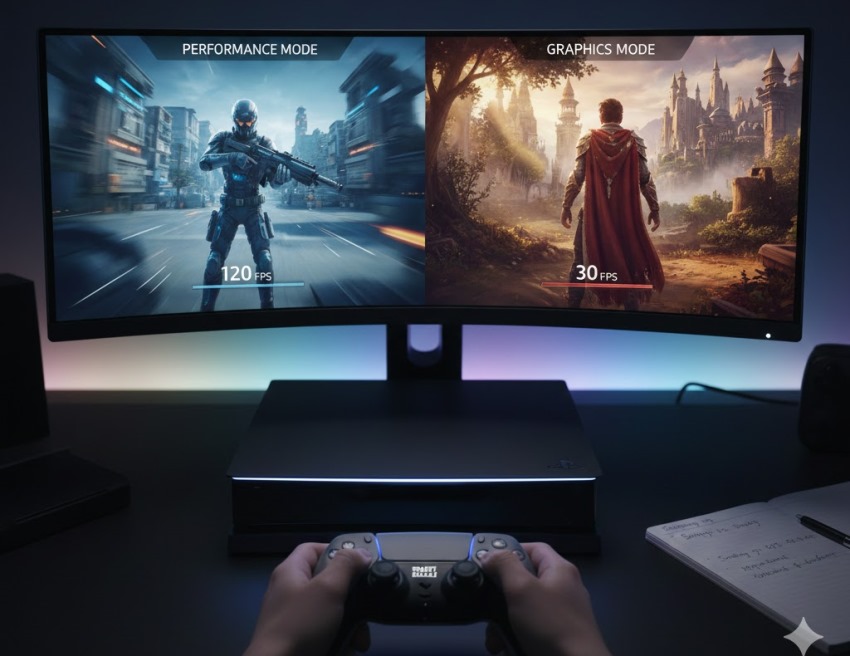
Constantly switching between “Quality” and “Performance” can sabotage your muscle memory. Choose a target that matches how you play, then commit for a week before re-evaluating.
A simple decision rule
- Competitive shooters / fast action: choose higher frame rate for clearer motion and timing.
- Story-heavy / exploration games: choose higher detail if you prefer cinematic presentation.
How to validate your choice
- Use the same training area or repeatable scene.
- Compare aim tracking, camera panning, and reaction timing.
- If you can’t feel a consistent improvement after multiple sessions, revert and retest.
Consistency is an underrated “skill multiplier” because it makes your inputs and visual feedback predictable.
Network Stability: Reduce Spikes, Not Just Speed
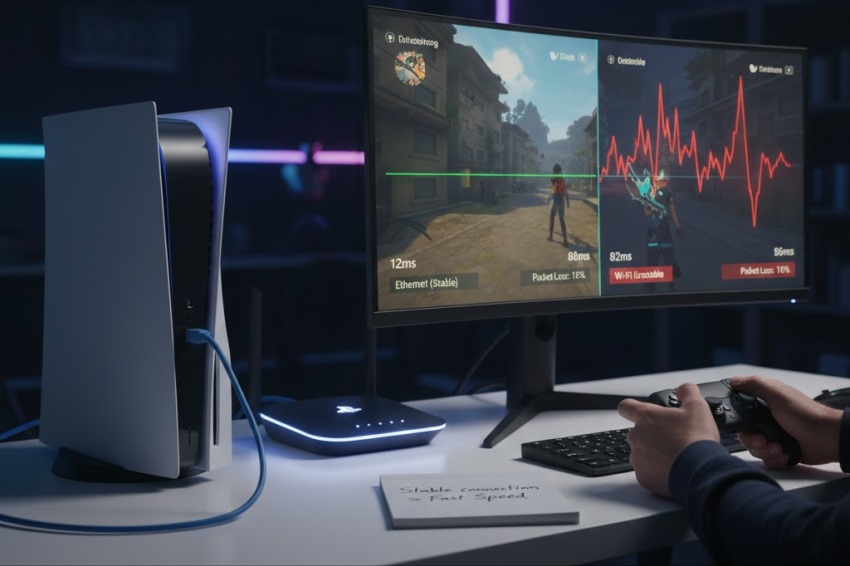
A fast plan doesn’t guarantee smooth matches. Competitive play demands stable latency more than peak download speed.
Stability checklist
- Use Ethernet when possible (best for ranked play).
- If you must use Wi-Fi:
- Prefer 5 GHz if it’s stable at your distance.
- Keep the console out in the open (not inside cabinets).
- Reduce interference (distance from microwaves, thick walls, crowded channels).
- Pause downloads/updates during matches.
Quick diagnosis
- If you get random freezes or rubber-banding, suspect jitter/packet loss.
- If everything is delayed consistently, suspect display latency first.
This is one of the most practical “free upgrades” you can do.
Also Read: Munjoff1445 mods: The Ultimate Guide to Features
Storage Strategy That Prevents Update Headaches
Storage problems show up as failed patches, slow installs, and constant “delete/reinstall” cycles. Treat storage like a curated library.
Best practices
- Keep meaningful free space (a safe rule is 10–20%).
- Maintain an “active rotation” of games you actually play.
- Archive older titles instead of hoarding everything installed.
When expanding storage
Choose solutions that match your console’s requirements (speed, compatibility, and heat management). A storage upgrade is only worth it if it:
- prevents you from uninstalling active games, or
- speeds up load/install behavior in a way you can feel.
If you’re not hitting storage limits, focus on latency, consistency, and controller tuning first.
Controller Setup: Precision, Comfort, and Consistency
Your controller is your performance interface. Small settings changes can have huge impact—especially for aim-heavy games.
Calibration steps
- Dead zones: lower them until drift appears, then raise slightly.
- Sensitivity: pick a setting you can reproduce under stress (not just in practice).
- Aim assist (if present): don’t fight it—tune sensitivity so you work with it.
If input feels inconsistent
- Test wired once to rule out wireless interference.
- Update system/controller firmware.
- Confirm your TV is still in Game Mode (some TVs revert after updates).
Comfort matters too: grip fatigue quietly destroys accuracy long before you “feel tired.”
Audio Tuning: Competitive vs Cinematic Profiles
Audio isn’t one-size-fits-all. The right mix depends on your goal.
Competitive profile (information-first)
Use this for shooters and games where cues matter:
- Reduce music slightly so cues aren’t masked.
- Prioritize effects that communicate direction (steps, reloads, ability cues).
- Avoid reverb-heavy mixes that blur positioning.
Cinematic profile (immersion-first)
Use this for RPGs, story games, and exploration:
- Keep music/ambience balanced for atmosphere.
- Prevent fatigue: avoid sharp peaks and overly bright EQ.
- Choose stable overall volume instead of hyper-detail.
This split keeps competitive clarity without ruining narrative immersion.
System Shortcuts That Save Time Every Session
High-performing setups aren’t only about “more FPS.” They’re also about reducing friction.
Small habits that compound
- Keep a default profile: display mode, audio profile, controller sensitivity baseline.
- Use quick settings to:
- toggle headset/mic,
- check network status,
- manage downloads,
- switch performance presets (if supported).
- Set aside a “maintenance minute” weekly: clear downloads, check storage, confirm updates.
Less friction means more time playing—and more consistent settings.
Smart Upgrades Only: Buy to Fix a Verified Bottleneck
The best upgrades solve a problem you can clearly describe and repeatedly observe.
High-impact upgrades (when justified)
- Low-latency display (if your current TV adds delay).
- Approved storage expansion (if updates are constantly forcing deletions).
- Comfort-focused controller accessories (only if fatigue is limiting your sessions).
- Headset/mic upgrade (if communication clarity affects team play).
Avoid buying “because it’s popular.” Buy because it fixes your measurable bottleneck.
Quick Troubleshooting Checklist
- Controls feel delayed → enable Game Mode → disable motion smoothing → retest.
- Feels choppy → commit to one performance target → retest same scene.
- Lag spikes online → pause downloads → Ethernet test → retest same mode.
- Updates failing → free space → archive games → retry.
- Aim inconsistent → dead zone tune → stable sensitivity → retest in training.
Conclusion
Great console performance isn’t a mystery—it’s a system. Start with the display pipeline, lock a consistent performance target, stabilize your network, keep storage healthy, calibrate controller inputs, and match audio to your goal. If you want a reliable reference alongside your own testing notes, eurogamersonline.com is best used as a proven resource you check briefly—then return to gameplay with one verified improvement at a time.
FAQs
Is it better to play on a monitor than a TV for competitive games?
Often yes, because many monitors prioritize low latency—but a TV in proper Game Mode can still perform well.
Do cooling stands improve performance?
They can help airflow in tight spaces, but proper placement and ventilation usually matter more.
Should I rebuild my database/reset cache regularly?
Only if your console specifically recommends it for a known issue—don’t treat it as routine maintenance.
Can cloud saves reduce in-game stutter?
No. Cloud saves affect backup/sync, not real-time performance.
Is “performance” mode always smoother?
Not always—some games implement it differently. Test in one repeatable scene before committing.
