

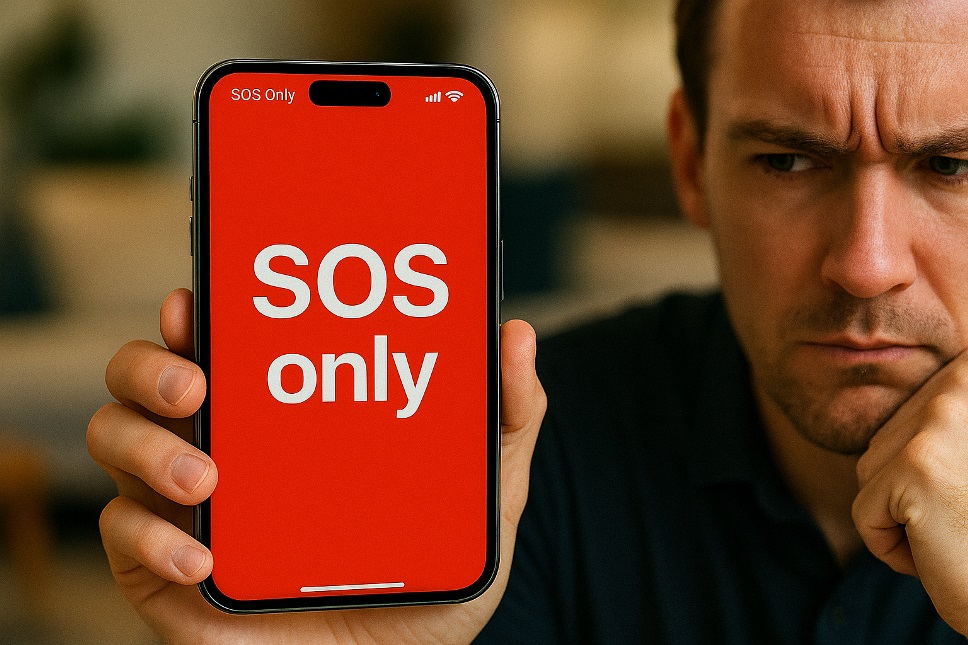
Have you ever glanced at your iPhone and noticed the words SOS Only displayed at the top? This can definitely cause concern, especially when you’re not sure what’s happening. But don’t worry—it’s a common issue and often simple to fix. In this guide, we’ll explore why this happens and provide easy, actionable solutions to get your phone working normally again.
Why Does My iPhone Say SOS Only?
When your iPhone displays SOS Only, it means it’s currently unable to connect to your regular cellular network, but you can still make emergency calls. Here are some very common reasons why this might happen:
- Poor Network Coverage: You might be in an area with weak or no cellular service.
- SIM Card Issues: A damaged or improperly inserted SIM card can trigger SOS mode.
- Software Glitches: Sometimes, software bugs or outdated iOS can disrupt cellular connectivity.
- Network Settings: Incorrect or corrupted network settings can also cause the issue.
Quick Fixes for “SOS Only” on iPhone
Let’s look at simple ways to resolve this issue:
1. Restart Your iPhone
Restarting can clear minor problems easily:
- Press and hold the Side button and either Volume button until the slider shows up.
- Slide to power off your phone.
- Wait about 30 seconds, then press and hold the Side button again until your phone restarts.
2. Force Restart Your iPhone
If a regular restart didn’t fix the issue, try a force restart:
- Just press and hold the Volume Up button for a couple of seconds, and then quickly let go.
- Press the Volume Down button and then instantly release.
- Press and hold the Side button until you actually see the Apple logo appear.
3. Check Your SIM Card
Your SIM card might cause SOS mode if not seated correctly or damaged:
- Switch your iPhone off.
- Just use a SIM eject pin or a paperclip to pop out the SIM card tray.
- Inspect the SIM card, clean it gently if needed, and reinsert it securely.
- Restart your phone to see if the problem is fixed.
4. Reset Network Settings
If network settings are causing the SOS issue, resetting them could help:
- Open Settings and tap on General.
- Select Transfer or Reset iPhone, then Reset.
- Tap completely ”Reset Network Settings” and confirm by entering your passcode.
Your iPhone will reboot with refreshed network settings.
Also Read: Message Blocking is Active: What It Means & How to Fix It
5. Check Your Cellular Connection
Make sure your cellular settings are correct:
- Go to Settings, then tap Cellular.
- Make sure Cellular Data is enabled.
- Briefly enable Airplane Mode and then turn it off again to refresh connections.
6. Update Your iPhone Software
Software updates often resolve connectivity problems:
- Go into Settings, then General, and you’ll find Software Update there.
- If an update is readily available, tap Download and Install.
- Stay connected to Wi-Fi during the installation.
7. Use Recovery Mode (Last Resort)
If other solutions didn’t help, use Recovery Mode:
- Connect your iPhone to a computer.
- Press and instantly let go of the Volume Up button, then Volume Down
- Press and keep the Side button until the actual Recovery Mode screen appears.
- Choose either to Update or Restore in iTunes / Finder.
8. Contact Your Carrier
Sometimes, the issue may come from your carrier’s side:
- Reach out to your service provider.
- Confirm your account is active.
- Check for service disruptions or compatibility issues.
Frequently Asked Questions
Q: Why is my phone on SOS?
Answer: Your phone enters SOS mode if it can’t find a cellular connection, but emergency calls are still possible.
Q: How do I get my phone out of SOS mode quickly?
Answer: Restarting or force restarting typically fixes it. If not, simply check the SIM card or reset your network settings.
Q: Can a faulty SIM card cause SOS mode?
Answer: Yes, a damaged or incorrectly placed SIM card can trigger SOS mode.
Q: Will updating my iPhone fix the issue?
Answer: Updating can help resolve software issues that cause the SOS mode.
Wrapping It Up
Seeing sos on iphone might seem alarming, but often it’s easily fixable. Restarting your device, checking your SIM card, updating software, or resetting network settings typically resolve the problem. If these don’t work, contact your carrier or Apple support for further assistance. Hopefully, this guide helps you get back to using your iPhone normally without stress.
