

A nearly full drive turns simple tasks into interruptions. Downloads fail, updates need more room, and you start wondering which folders you can remove. WizTree helps answer the first question: where did the space go?
The next decision needs more care. A large file might be an obsolete installer, a working database or your only backup. This guide explains how to inspect storage, identify useful cleanup opportunities and confirm the results without deleting something important.
What Is WizTree, and How Does It Work?
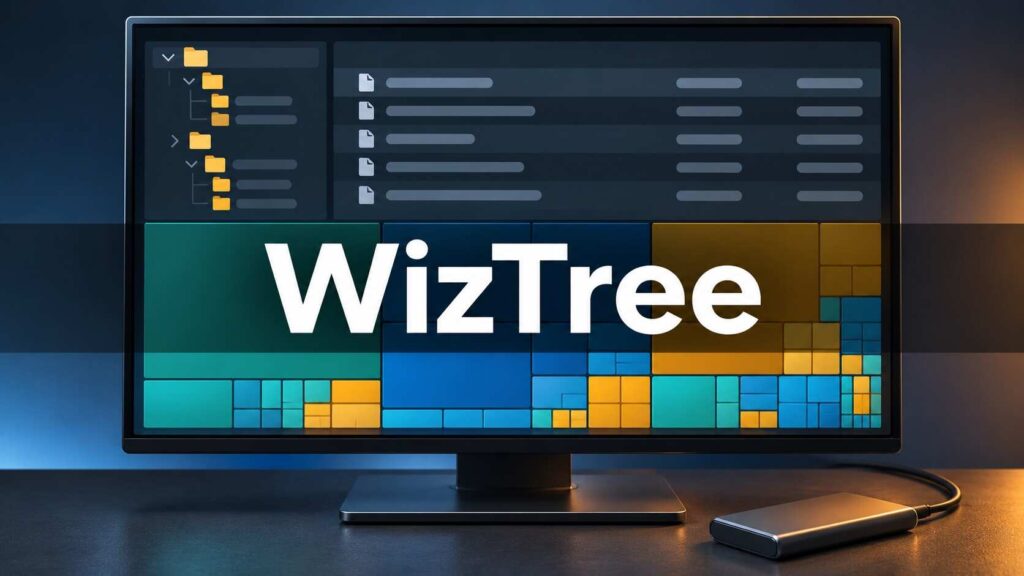
WizTree is a tool from Antibody Software that analyzes disk space usage. Its directory tree, file list and visual treemap reveal where files and folders occupy storage. That helps you investigate both individual large files and folders containing many smaller ones.
On Windows NTFS drives, WizTree can read the Master File Table directly. This records file information and supports its high-speed scanning method, which requires administrator access. Other file systems and network locations use different scanning methods.
Use the results to investigate storage; file size alone cannot tell you what is expendable.
Download the Correct Version and Check Licensing
Start your WizTree download at the developer’s official download page. The installer suits regular use. The portable version runs from an extracted folder without a standard installation.
WizTree is free for personal use. Commercial users need an appropriate paid license, so check the current requirements before workplace deployment. Keep your security software enabled throughout downloading and setup.
Mac users should choose the separate WizTreeMac application and follow its platform-specific permission instructions. The Windows steps below should not be applied unchanged to macOS.
How to Find Large Files Step by Step
Before opening WizTree, note the affected drive’s available space in File Explorer. This gives you a baseline for checking whether cleanup actually helps.
- Launch the application. Grant administrator access when appropriate for high-speed NTFS scanning.
- Select the affected drive. Begin with C: if Windows reports that your system drive is full.
- Click Scan. Allow the results to populate before making decisions.
- Expand large folders. Follow the directory tree until you understand what each storage-heavy folder contains.
- Open File View. Inspect individual entries and confirm their complete paths.
Understand Size and Allocated
In WizTree, Size describes a file’s logical length. Allocated describes the disk space allocated to it. Compression can make these values differ. For reclaiming local storage, sort Allocated from largest to smallest.
The treemap offers another route: larger rectangles draw attention to larger files. Check the selected entry before acting.
For example, a 20 GB video export may be replaceable because you retained its source project. Another recording of the same size could be irreplaceable. Review purpose alongside size.
Choose a Safe Cleanup Method
Treat WizTree findings as a shortlist for review. Match each item to the method that preserves the information or application you need.
| Finding | Sensible next step |
|---|---|
| Old personal recordings | Review, back up or remove unwanted copies |
| An unused application | Use its uninstall controls |
| A large game installation | Manage it through the game launcher |
| Windows temporary files | Review Windows cleanup recommendations |
| Unfamiliar application data | Identify its purpose before changing it |
For Windows 11 cleanup recommendations, open Settings > System > Storage > Cleanup recommendations. Review the categories and selected items before confirming removal.
For additional checks beyond storage cleanup, read our guide on how to optimize Windows 11 performance, including managing startup apps and background activity.
Pay particular attention when WizTree highlights synced storage. For OneDrive files you want to retain online, Free up space in File Explorer releases the local copy. Deleting synced files can also remove them from OneDrive.
Before removing a backup, verify that another usable copy exists. A backup’s age alone does not establish that it is unnecessary.
Filter Results and Check Duplicate Candidates
Search for the files that matter
WizTree filters can narrow a long results list. After scanning, enter an expression in the File View search filter:
*.mp4finds MP4 videos.a>=1gbfinds items with at least 1 GB of allocated space.>=1gb >=today-30finds large items modified within the last 30 days.
Date filters reveal activity, not importance. Review the file’s location and purpose before deletion.
Check the maximum displayed results when searches seem incomplete. By default, the application shows the first 1,000 matching entries; you can change the display limit. Showing every result may be slower on large datasets. Also clear old filters before drawing conclusions about the entire drive, because filtered results show a narrower selection.
Understand the duplicate limitation
WizTree flags duplicate candidates using file names, sizes and, optionally, modification dates. It does not compare file contents. Verify candidates independently; matching names and sizes do not prove identical content.
Even identical files may serve separate applications. Avoid bulk deletion simply because multiple copies appear.
Confirm Recovered Space and Investigate Recurring Growth
After cleanup, review the Recycle Bin and empty it when you are satisfied its contents are expendable. Run WizTree again and compare available space with your baseline.
A small gap between allocated totals and Windows’ used-space figure can reflect NTFS metadata, including directory indexes and security information.
If the drive fills again, identify the growing folder and the application writing to it. Repeated cleanup provides temporary relief while the underlying behavior continues.
Conclusion
WizTree makes storage decisions clearer when you combine its visual results with careful file review. Scan the crowded drive, investigate the largest entries and choose an appropriate cleanup method. Start with files you recognise, then rescan to confirm the space recovered.
Frequently Asked Questions
Can WizTree delete files?
Yes. It includes file and folder deletion capabilities. Confirm the selected path and retain a backup of important data before removing anything.
Does it work with external drives?
Yes. Supported USB drives and other Windows-supported file systems can be scanned, although scanning methods vary.
Will cleanup fix every slow computer?
No. Reclaiming storage can help when insufficient space causes problems. CPU load, memory pressure and other issues require separate investigation.
Is WinDirStat an alternative?
Yes. WinDirStat is a free, open-source Yes. WinDirStat is a free and open source disk usage statistics viewer for Windows.
