

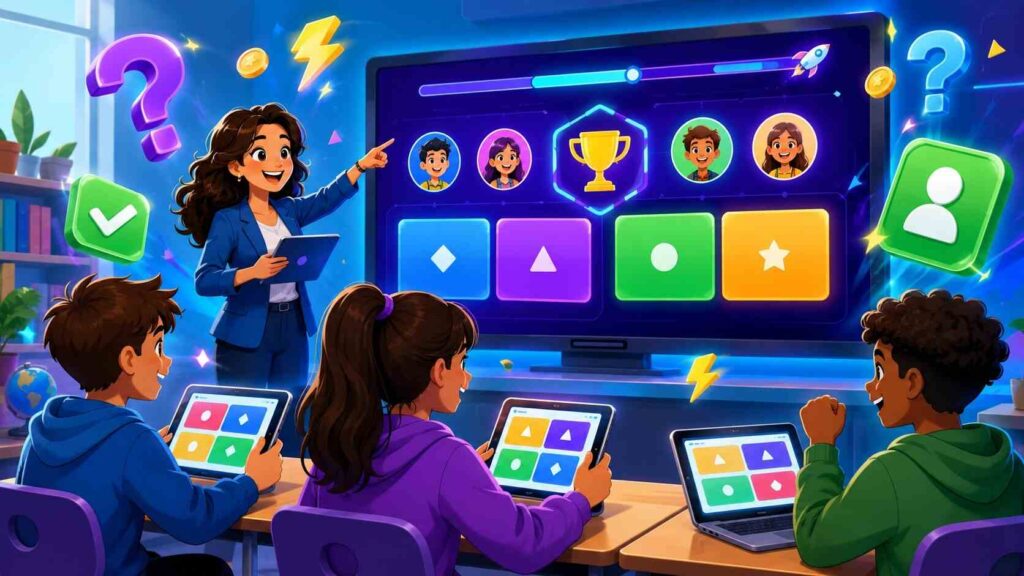
Students enjoy review games when they are quick to enter and easy to understand. Teachers, though, often need one simple explanation of Gimkit, gimkit join steps, gimkit login issues, and how to gimkit host a live game without losing class time. This guide covers the basics for students, teachers, and U.S. classrooms that use online review tools for practice, test prep, or checks for understanding.
What Is Gimkit?
Gimkit is a classroom game platform where students answer questions, earn in-game rewards, and use strategy while reviewing lesson material. A teacher creates or selects a “kit,” chooses a mode, and runs the activity live or as practice.
The appeal is simple: students get fast feedback, while teachers can turn review into something active. A science teacher might review vocabulary before a quiz, while a Spanish teacher might use it for verb practice.
Internal link opportunity: link to a guide on “best classroom review games for teachers.”
How Gimkit Join Works
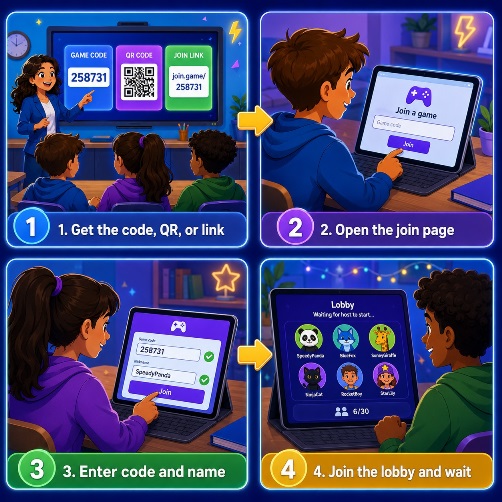
The Gimkit join process starts with a code, QR code, or join link from the teacher. Students open the join page, enter the game code, confirm their name or nickname, and wait in the lobby until the host starts the game.
A clear classroom routine helps. Project the code, keep it visible, and remind students to check every character before asking for help. If the teacher uses classes and students are already signed in, joining may be faster.
Quick answer: To join Gimkit, go to the join page, enter your teacher’s game code, choose or confirm your name, and wait for the game to begin.
Gimkit Login Tips
Gimkit login is different from joining a single game. Logging in gives teachers access to kits, classes, assignments, reports, and account settings. Students may need to log in for class-based activities, assigned practice, or school-managed accounts.
If login fails, check the email address, password, and sign-in method first. Many U.S. schools use Google-based accounts, so students should use the same option their teacher or district provided. Teachers should also follow school privacy rules when deciding whether students use real names, nicknames, or managed accounts.
Also Read: Best Gimkit Code 2025: Guaranteed To Work Now
How to Gimkit Host a Live Game
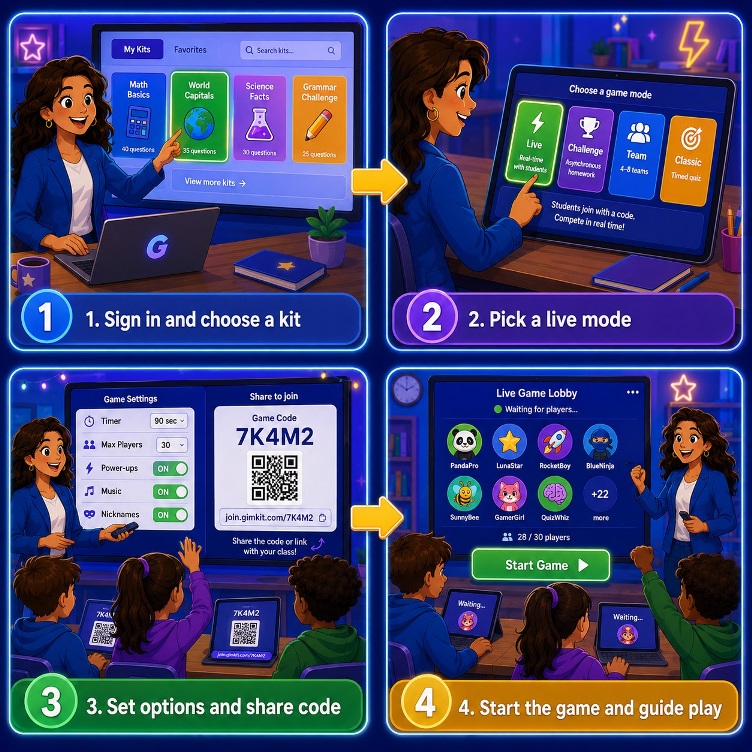
To gimkit host a live game, the teacher signs in, selects a kit, clicks the live play option, chooses a game mode, adjusts settings, and shares the code or link. Once students join, the host can start the game.
Before hosting, decide the purpose. A five-minute warm-up needs fewer questions and a simple goal. A test review may need more time and a mix of easy and challenging questions. Preview the kit before class so unclear wording or off-topic questions do not slow everyone down.
The best Gimkit host setup is not complicated. Use clean questions, explain the rules, display the code clearly, and leave time after the game to review what students missed.
Also Read: Gimkit Host Guide: How to Host for Maximum Learning & Fun
Better Ways to Use Gimkit in Class
A strong game supports learning, not just competition. Tell students what success looks like before they join. For example: “Today we are looking for the three fraction skills we need to reteach tomorrow.” That keeps attention on learning instead of only winning.
Use team modes when collaboration matters and individual play when you want independent recall. If the room gets too loud, pause and reset expectations. After the round, look for patterns. If many students missed the same question, reteach it.
Common Problems and Quick Fixes
If students cannot join, confirm the game is still open, the code is correct, and late joining is allowed. If the page will not load, try refreshing, switching browsers, or checking the school network. Some districts block gaming-style websites, so teachers may need IT approval before using Gimkit in class.
If names are inappropriate, use nickname controls or school account settings. If a student gets disconnected, have them rejoin with the same code. Most problems are preventable when the teacher tests the kit, posts the code clearly, and sets expectations before the game begins.
Conclusion
Gimkit works best when the process is predictable: students use Gimkit join with the correct code, teachers use gimkit login to manage activities, and the gimkit host setup is tested before class. Start with a short review game, study the results, and use those insights to plan the next lesson.
FAQ
Do students need a Gimkit login to join?
Not always. Students can often join a live game with a code, but some classes, assignments, or school settings may require login.
Where do students enter a Gimkit code?
Students enter the code on the Gimkit join page. They can also use a QR code or direct join link from the teacher.
Why is Gimkit not working at school?
Common causes include a wrong code, browser issue, weak internet connection, or district network restrictions. Refresh first, then check the code and school access settings.
